Update
Last few days I have been busy trying to get a new location for my blog, The feedback and the response to this blog has been overwhelming and I thank you , the readers for that.
The good news is I have a new fresh, cleaner and a sleek looking blog coming up. Now I am in the process of transferring the old entries to their new home. I am working hard to get it released this weekend so please bear with me for a little while more.
Also my sincere apologies to Yury Atul Fadi among others who have left their feedback but I was unable to respond to. I promise to be back soon.
Sam
Thursday, September 28, 2006

Monday, September 25, 2006
Upgrading JDK to 1.5 and configuring Jconsole.
In my earlier post i had talked about JVMs in Oracle Applications. Also i had mentioned about the jconsole tool that could be used for real time monitoring of your middle tier JVM usage.
The latest certified version of JDK supported with Oracle Applications is JDK 1.5. The version of JDK that is shipped with 11.5.10.2 is JDK 1.4.
Oracle recommends you to upgrade your JDK to 1.5 and one of the advantages of going for this upgrade is the ability to use Jconsole.
In my current i am detailing out step by step instructions for upgrading your middle tier JDK from 1.4 to 1.5 and the configuring jconsole for a real time monitoring of your JVM.
Upgrading JDK to 1.5
Downloading JDK 1.5
At the start you would require to get the J2SE1.5 software from the sun site
http://java.sun.com/j2se/1.5.0/download.jsp
Choose the J2SE 1.5 update 8 rpm file for Linux the file would be in the form of *.rpm.bin
Installing JDK 1.5
You must install the J2SE1.5 software on all the application middle tier nodes.
After you have FTPed the file to you application server change the permissions and execute the .bin file as the root user
# chmod 755 jdk-1_5_0_08-linux-i586-rpm.bin
# ./jdk-1_5_0_08-linux-i586-rpm.bin
This will present you with a binary license agreement agreeing to which will do the rpm installation for you.
Do you agree to the above license terms? [yes or no]
yes
Unpacking...
Checksumming...
0
0
Extracting...
UnZipSFX 5.42 of 14 January 2001, by Info-ZIP (Zip-Bugs@lists.wku.edu).
inflating: jdk-1_5_0_08-linux-i586.rpm
Preparing... ########################################### [100%]
1:jdk ########################################### [100%]
Done.
Make a note of the J2SE installation directory which i refer as JDK50_TOP, in my case it was /usr/java/jdk1.5.0_08.
Verify the java version
Verify the version of java installed
# ./java -version
java version "1.5.0_08"
Java(TM) 2 Runtime Environment, Standard Edition (build 1.5.0_08-b03)
Java HotSpot(TM) Server VM (build 1.5.0_08-b03, mixed mode)
The following steps are to be performed as the applications user.
Apply Inter operability patches
Apply the following Oracle Applications 11.5.10.2 J2SE1.5 inter operability patches using adpatch.
Patch 4372996
Patch 5372210
I did a shutdown of my application tier process before applying these.
$ adstpall.sh apps/apps
$ cd 4372996
$ adpatch options=hotpatch
Note: In case you have not applied the CU2 that is you are not on 11.5.10.2 you must apply TXK AutoConfig Template Rollup
patch 4367673.
Execute the J2SE 5.0 Upgrade Script to Update Configuration Files
$ txkrun.pl -script=SetJDKCfg -contextfile=$CONTEXT_FILE -runautoconfig=Yes -appspass=apps -jdktop=/usr/java/jdk1.5.0_08
This will update you configuration files and run autoconfig at the end.
Verifying java on the application tiers
Execute the applications environment script again and check the JAVA in path
$ . ./APPSORA.env
$ which java
/usr/java/jdk1.5.0_08/bin/java
Testing Applications
Navigate to the following page
In my earlier post i had talked about JVMs in Oracle Applications. Also i had mentioned about the jconsole tool that could be used for real time monitoring of your middle tier JVM usage.
The latest certified version of JDK supported with Oracle Applications is JDK 1.5. The version of JDK that is shipped with 11.5.10.2 is JDK 1.4.
Oracle recommends you to upgrade your JDK to 1.5 and one of the advantages of going for this upgrade is the ability to use Jconsole.
In my current i am detailing out step by step instructions for upgrading your middle tier JDK from 1.4 to 1.5 and the configuring jconsole for a real time monitoring of your JVM.
Upgrading JDK to 1.5
Downloading JDK 1.5
At the start you would require to get the J2SE1.5 software from the sun site
http://java.sun.com/j2se/1.5.0/download.jsp
Choose the J2SE 1.5 update 8 rpm file for Linux the file would be in the form of *.rpm.bin
Installing JDK 1.5
You must install the J2SE1.5 software on all the application middle tier nodes.
After you have FTPed the file to you application server change the permissions and execute the .bin file as the root user
# chmod 755 jdk-1_5_0_08-linux-i586-rpm.bin
# ./jdk-1_5_0_08-linux-i586-rpm.bin
This will present you with a binary license agreement agreeing to which will do the rpm installation for you.
Do you agree to the above license terms? [yes or no]
yes
Unpacking...
Checksumming...
0
0
Extracting...
UnZipSFX 5.42 of 14 January 2001, by Info-ZIP (Zip-Bugs@lists.wku.edu).
inflating: jdk-1_5_0_08-linux-i586.rpm
Preparing... ########################################### [100%]
1:jdk ########################################### [100%]
Done.
Make a note of the J2SE installation directory which i refer as JDK50_TOP, in my case it was /usr/java/jdk1.5.0_08.
Verify the java version
Verify the version of java installed
# ./java -version
java version "1.5.0_08"
Java(TM) 2 Runtime Environment, Standard Edition (build 1.5.0_08-b03)
Java HotSpot(TM) Server VM (build 1.5.0_08-b03, mixed mode)
The following steps are to be performed as the applications user.
Apply Inter operability patches
Apply the following Oracle Applications 11.5.10.2 J2SE1.5 inter operability patches using adpatch.
Patch 4372996
Patch 5372210
I did a shutdown of my application tier process before applying these.
$ adstpall.sh apps/apps
$ cd 4372996
$ adpatch options=hotpatch
Note: In case you have not applied the CU2 that is you are not on 11.5.10.2 you must apply TXK AutoConfig Template Rollup
patch 4367673.
Execute the J2SE 5.0 Upgrade Script to Update Configuration Files
$ txkrun.pl -script=SetJDKCfg -contextfile=$CONTEXT_FILE -runautoconfig=Yes -appspass=apps -jdktop=/usr/java/jdk1.5.0_08
This will update you configuration files and run autoconfig at the end.
Verifying java on the application tiers
Execute the applications environment script again and check the JAVA in path
$ . ./APPSORA.env
$ which java
/usr/java/jdk1.5.0_08/bin/java
Testing Applications
Navigate to the following page
http://[yourhost.domain]:[port]/OA_HTML/jsp/fnd/aoljtest.jsp
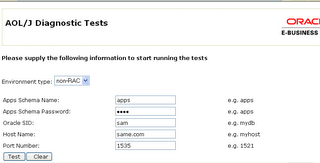
this will prompt you for your apps user, password, hostname and port. After the test is complete verify the following files are in the new JDK1.5 home.
/usr/java/jdk1.5.0_08/lib/dt.jar
/usr/java/jdk1.5.0_08/lib/tools.jar
/usr/java/jdk1.5.0_08/jre/lib/rt.jar
/usr/java/jdk1.5.0_08/jre/lib/charsets.jar
Verify adovars.env file on your application tier.
$APPL_TOP/admin/adovars.env
Check the new JDK1.5 home has been updated.
OA_JRE_TOP="/usr/java/jdk1.5.0_08"
export OA_JRE_TOP
AF_JRE_TOP="/usr/java/jdk1.5.0_08"
export AF_JRE_TOP
CLASSPATH="/usr/java/jdk1.5.0_08/jre/lib/rt.jar:/usr/java/jdk1.5.0_08/lib/dt.jar:/usr/java/jdk1.5.0_08/lib/tools.jar:/usr/jav
a/jdk1.5.0_08/jre/lib/charsets.jar:/u05/sam/applsam/samcomn/java/appsborg2.zip:/u05/sam/applsam/samora/8.0.6/forms60/java:/u0
5/sam/applsam/samcomn/java"
export CLASSPATH
AF_CLASSPATH="/usr/java/jdk1.5.0_08/jre/lib/rt.jar:/usr/java/jdk1.5.0_08/lib/dt.jar:/usr/java/jdk1.5.0_08/lib/tools.jar:/usr/
java/jdk1.5.0_08/jre/lib/charsets.jar:/u05/sam/applsam/samcomn/java/appsborg2.zip:/u05/sam/applsam/samora/8.0.6/forms60/java:
/u05/sam/applsam/samcomn/java"
export AF_CLASSPATH
Additional Check.
You can log into Oracle Applications as the sysadmin user and run a concurrent request and view the output to check the working of applications.
Configuring JCONSOLE
export OA_JRE_TOP
AF_JRE_TOP="/usr/java/jdk1.5.0_08"
export AF_JRE_TOP
CLASSPATH="/usr/java/jdk1.5.0_08/jre/lib/rt.jar:/usr/java/jdk1.5.0_08/lib/dt.jar:/usr/java/jdk1.5.0_08/lib/tools.jar:/usr/jav
a/jdk1.5.0_08/jre/lib/charsets.jar:/u05/sam/applsam/samcomn/java/appsborg2.zip:/u05/sam/applsam/samora/8.0.6/forms60/java:/u0
5/sam/applsam/samcomn/java"
export CLASSPATH
AF_CLASSPATH="/usr/java/jdk1.5.0_08/jre/lib/rt.jar:/usr/java/jdk1.5.0_08/lib/dt.jar:/usr/java/jdk1.5.0_08/lib/tools.jar:/usr/
java/jdk1.5.0_08/jre/lib/charsets.jar:/u05/sam/applsam/samcomn/java/appsborg2.zip:/u05/sam/applsam/samora/8.0.6/forms60/java:
/u05/sam/applsam/samcomn/java"
export AF_CLASSPATH
Additional Check.
You can log into Oracle Applications as the sysadmin user and run a concurrent request and view the output to check the working of applications.
Configuring JCONSOLE
The jconsole executable comes within your jdk 1.5 software.You can either run it from the application middle tier server itself or connect remotely. In our case we will configure jconsole to run from the application tier server itself.
You would need to have the following two parameters in your jserv.properties file
wrapper.bin.parameters=-Dcom.sun.management.jmxremote
wrapper.bin.parameters=-Dcom.sun.management.jmxremote.ssl=false
Adding Parameters To The Custom Template File
Since the seeded autoconfig template files do not have these parameters you have to create a custom template file to intoduce these additional parameters
First you have to find out the template file corresponding to the jserv.properties file.
You could do this by running the adtmplreport.sh script at $AD_TOP/bin
$AD_TOP/bin/adtmplreport.sh contextfile=$CONTEXT_FILE target=/u05/sam/applsam/samora/iAS/Apache/Jserv/etc/jserv.properties
TEMPLATE FILE : /u05/sam/applsam/samappl/fnd/11.5.0/admin/template/jserv_ux_ias1022.properties
TARGET FILE : /u05/sam/applsam/samora/iAS/Apache/Jserv/etc/jserv.properties
Create a directory for your template file.
mkdir $FND_TOP/admin/template/custom
Copy the existing template file here
cd $FND_TOP/admin/template/custom
cp - i /u05/sam/applsam/samappl/fnd/11.5.0/admin/template/jserv_ux_ias1022.properties
.
edit this template file and introduce the following line here
wrapper.bin.parameters=-Dcom.sun.management.jmxremote
wrapper.bin.parameters=-Dcom.sun.management.jmxremote.ssl=false
Check the custom template file
First you have to find out the template file corresponding to the jserv.properties file.
You could do this by running the adtmplreport.sh script at $AD_TOP/bin
$AD_TOP/bin/adtmplreport.sh contextfile=$CONTEXT_FILE target=/u05/sam/applsam/samora/iAS/Apache/Jserv/etc/jserv.properties
TEMPLATE FILE : /u05/sam/applsam/samappl/fnd/11.5.0/admin/template/jserv_ux_ias1022.properties
TARGET FILE : /u05/sam/applsam/samora/iAS/Apache/Jserv/etc/jserv.properties
Create a directory for your template file.
mkdir $FND_TOP/admin/template/custom
Copy the existing template file here
cd $FND_TOP/admin/template/custom
cp - i /u05/sam/applsam/samappl/fnd/11.5.0/admin/template/jserv_ux_ias1022.properties
.
edit this template file and introduce the following line here
wrapper.bin.parameters=-Dcom.sun.management.jmxremote
wrapper.bin.parameters=-Dcom.sun.management.jmxremote.ssl=false
Check the custom template file
Check that the custom template file is OK by running the
$AD_TOP/bin
adchkcfg.sh contextfile= appspass=
adchkcfg.sh contextfile=$CONTEXT_FILE appspass=apps
Run autoconfig and verify in the values have been written into the jserv.properties.
Restart you Oracle application tier services
$ cd $COMMON_TOP/admin/scripts/[context_name]/adstpall.sh apps/apps
$ cd $COMMON_TOP/admin/scripts/[context_name]/adstrtal.sh apps/apps
You can now launch jconsole from JDK50_TOP/bin
$ ./jconsole
adchkcfg.sh contextfile=
adchkcfg.sh contextfile=$CONTEXT_FILE appspass=apps
Run autoconfig and verify in the values have been written into the jserv.properties.
Restart you Oracle application tier services
$ cd $COMMON_TOP/admin/scripts/[context_name]/adstpall.sh apps/apps
$ cd $COMMON_TOP/admin/scripts/[context_name]/adstrtal.sh apps/apps
You can now launch jconsole from JDK50_TOP/bin
$ ./jconsole
As you see the configuration take place automatically when you launch jconsole from the application server itself.You just need to click on connect.

The first screen shows you a sumary of the JVM usage and garbage collection.
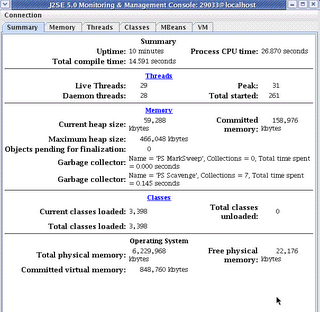
The next screen is more fun, this show you the real time JVM usage in a graphical format.

References
Using J2SE Version 5.0 with Oracle E-Business Suite 11i Note:304099.1Using AutoConfig to Manage System Configurations with Oracle Applications 11i Note:165195.1
Using Jconsole with Apps 11i by Steven Chan
Version Information
Oracle Applications:11.5.10.2
JDK:1.5
OS: Redhat Linux AS 4
Subscribe to:
Comments (Atom)


